Gates
Quickstart
Note
Gates is available on all paid plans. On the free plan, the decision endpoint returns 403 pro_only.
This guide takes you from no gate to a first decision: create a gate, review its starter rules, and call it from your server.
Step 1: Create your first gate
Open the Gates section of your UserCheck dashboard and click Create Your First Gate (or Create New Gate if you already have one).
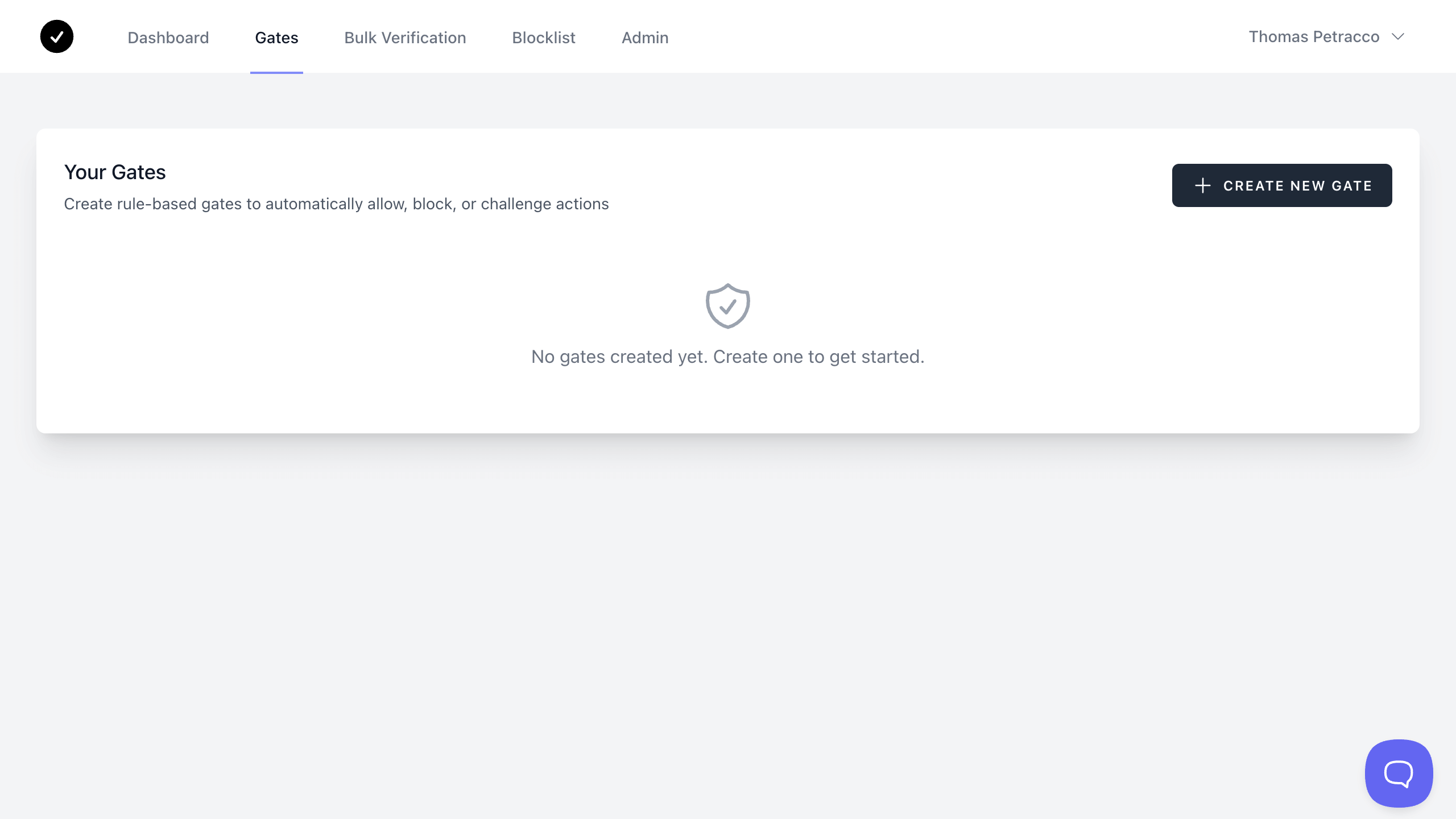
The creation form asks for two things:
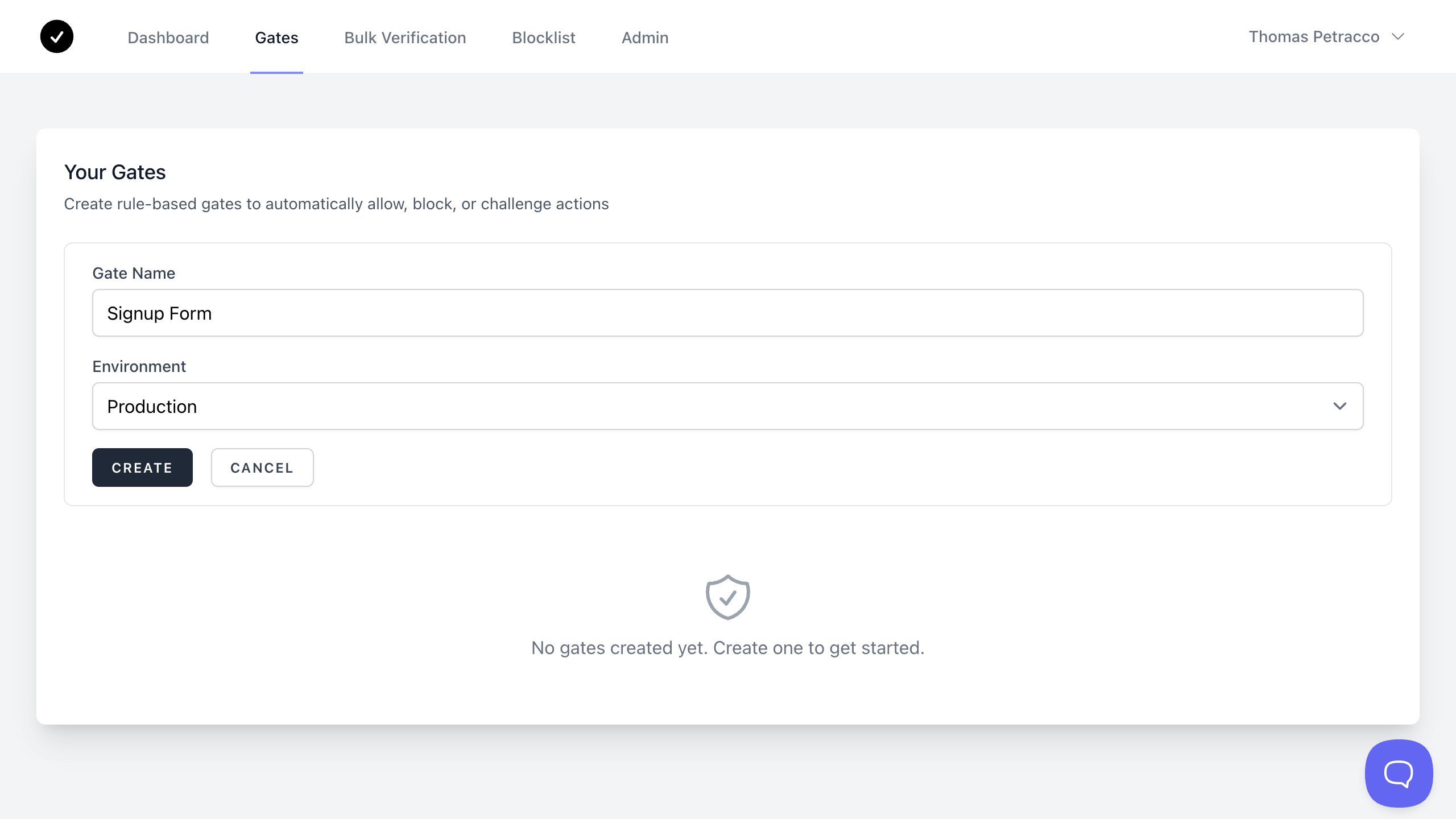
Gate configuration
- Gate Name: Choose a descriptive name like "Signup Form", "Trial Registration", or "Comment System"
- Environment: Production is preselected, which matches the API key created with your account (production keys start with
prd_). A gate only answers keys from its own environment. A key from any other environment gets404 gate_not_found. Pick Staging or Development only if you will call the gate with a key from that environment. Decisions in every environment use the same monthly credits.
Click Create to generate your new gate.
Step 2: Review your starter rules
A gate created in the dashboard comes with six starter rules covering the most common signup abuse patterns:
| Rule | Action | Matches when |
|---|---|---|
| Block disposable email or domain | Block | email.disposable or domain.disposable is true |
| Block domains with no MX records | Block | domain.mx is false |
| Block spam domains | Block | domain.spam is true |
| Challenge low-quality TLDs | Challenge | domain.tld is site, cyou, gd, click, top, shop, sbs or cfd |
| Challenge VPN traffic | Challenge | ip.anonymity.vpn.detected is true (only when you send ip) |
| Challenge new domains | Challenge | domain.age_days is under 30 |
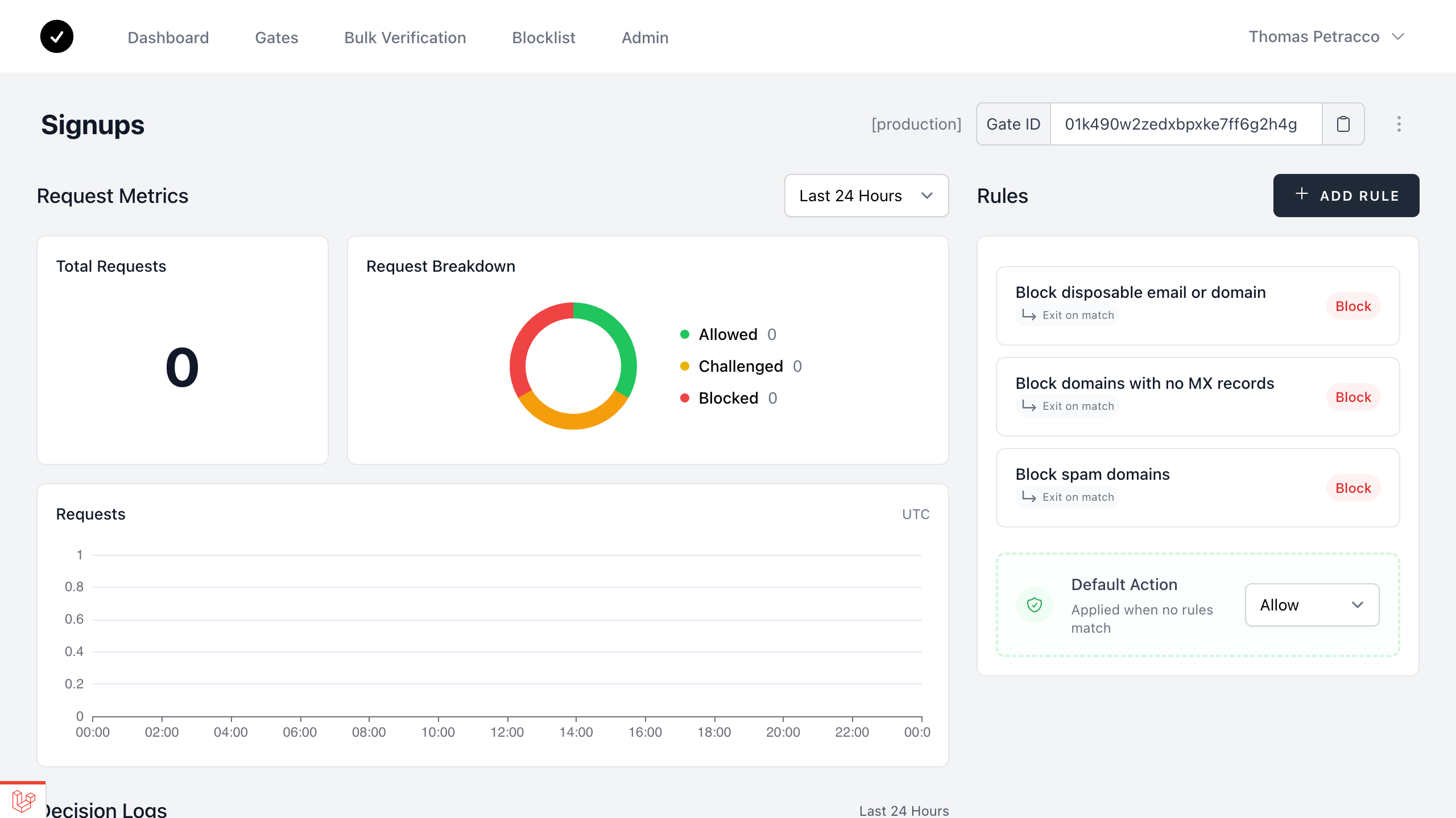
If no rule matches, the gate's Default Action applies. It is Allow unless you change it at the bottom of the rule list.
Customizing your rules
Click a rule to edit it, or click Add Rule to create one.
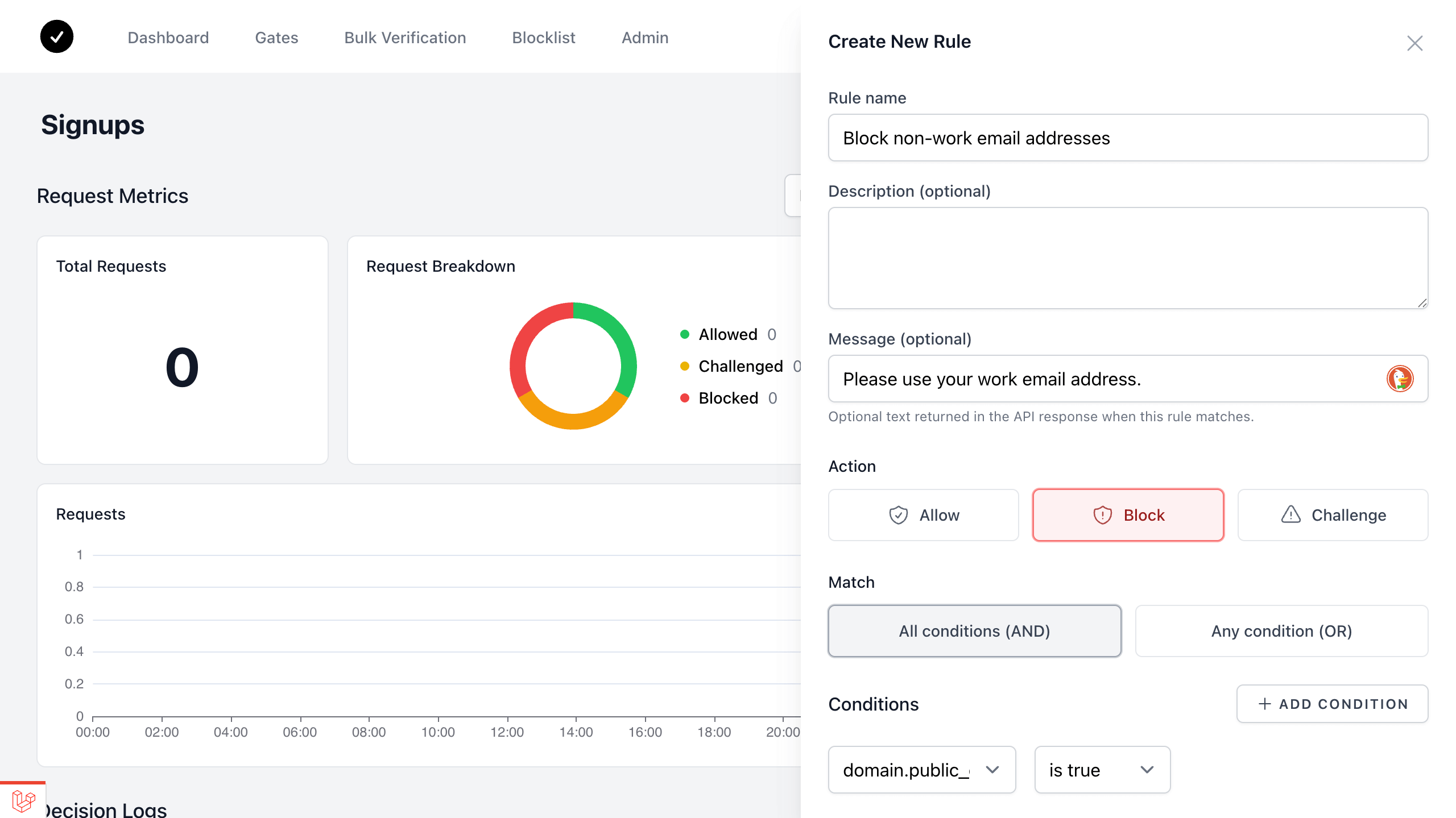
Rule components
Each rule has:
- Conditions: one or more checks, each made of a field, an operator, and a value. With two or more conditions, choose AND (all must match) or OR (any can match).
- Action: Allow, Block, or Challenge.
- Rule name: a label for the rule.
- Description (optional): why this rule exists or what it targets.
- Response message (optional): text returned in the decision as
rule.messagewhen this rule sets the verdict. You can show it to your user. - Enabled: turn it off to pause the rule without deleting it.
- Stop processing: when the rule matches, skip the remaining rules and make its action final. The rule list marks these rules with Exit on match.
Learn more about Rules & Conditions.
Rule ordering
Rules run from top to bottom. When a rule matches, its action becomes the decision, and a later matching rule can replace it. A matching rule with Stop processing on ends evaluation, so its action is final.
All six starter rules have Stop processing on, so the first one that matches decides. New rules are added at the bottom. To add an exception, such as always allowing a partner's domain, turn on Stop processing for it and drag it above the rules it should override. In a gate where no rule uses Stop processing, the last matching rule wins, so an exception goes below the rules it overrides instead.
Changes apply to new decisions within a few seconds. Rules & Conditions covers the evaluation model in full.
Step 3: Call the gate from your server
You need two things:
- The Gate ID, shown with a copy button at the top of the gate page.
- An API key from the same environment as the gate, found under API Keys.
Call the gate from your backend, never from the browser. The request needs your secret API key, and the endpoint does not accept calls from web pages on other sites (no CORS).
curl -X POST "https://api.usercheck.com/v1/gates/YOUR_GATE_ID/decisions" \
  -H "Authorization: Bearer YOUR_API_KEY" \
  -H "Content-Type: application/json" \
  -d '{"email": "[email protected]"}'
The response carries the verdict, the rule that set it, and the signals the rules were evaluated against. Shortened:
{
  "id": "01k1skm0zdceees5qa9n3m5epx",
  "gate_id": "01k2wjgq8rnv6t0aefy3s7xdhb",
  "action": "allow",
  "rule": null,
  "input": {
    "email": "[email protected]"
  },
  "signals": {
    "email": {
      "address": "[email protected]",
      "disposable": false
    },
    "domain": {
      "name": "github.com",
      "mx": true,
      "spam": false
    }
  }
}
action is the verdict. rule is null here because no rule matched, so the gate's default action (Allow) applied. Try [email protected] to see "action": "block" and the rule that decided it.
Each decision costs 1 credit. To evaluate IP rules, such as Challenge VPN traffic, add "ip" with your user's IP address. This costs 2 extra credits.
In your signup handler, let allow through, reject block, and send challenge to an extra check such as email verification. If you have no extra check yet, treat challenge as allow and review those accounts later.
Set a client timeout and decide what your app does if the call fails. See Timeouts and failures.
The Decision Endpoint reference covers the full request and response format.
Step 4: Monitor your gate's performance
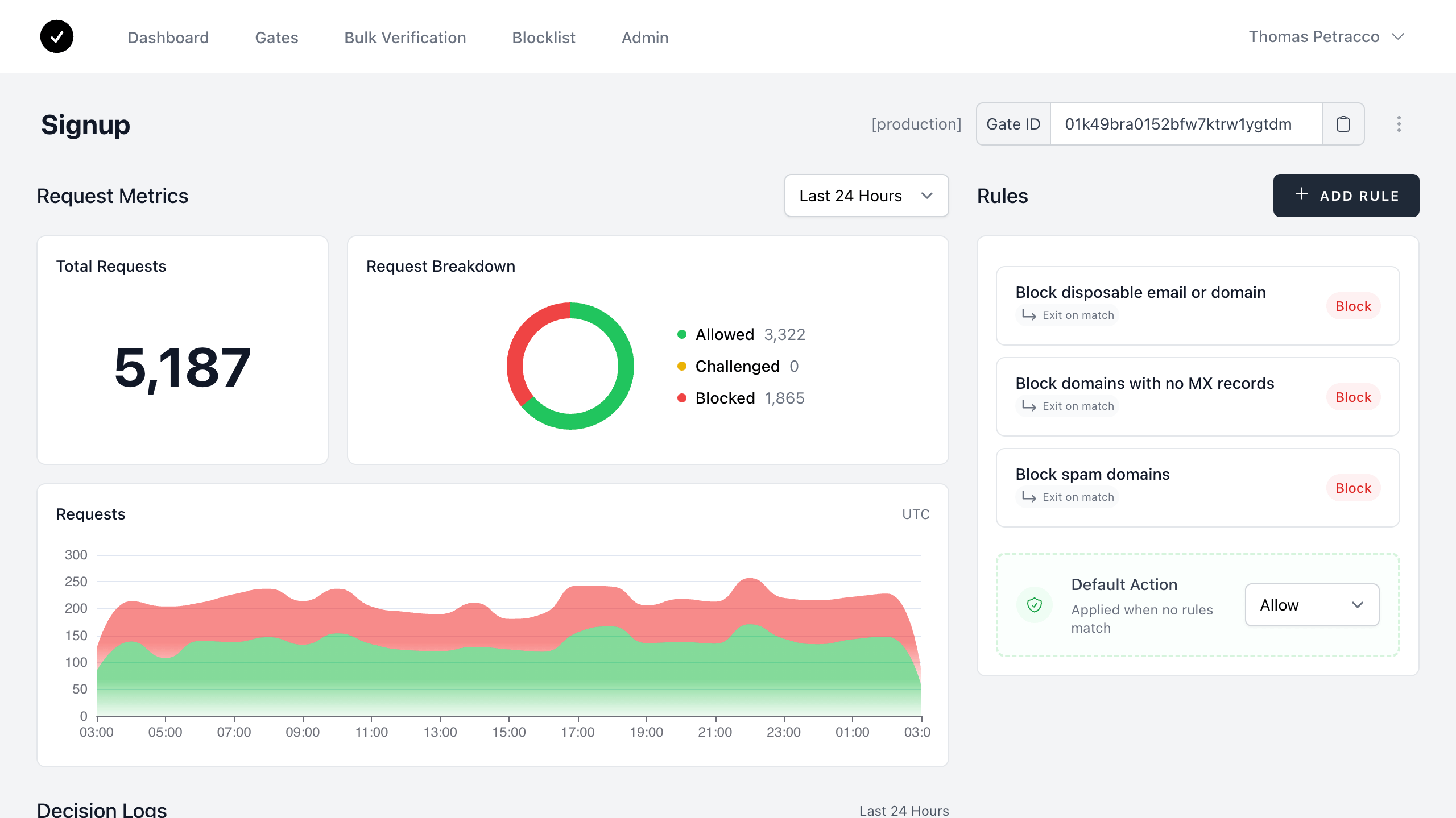
Once the gate is live and receiving traffic, the dashboard shows which rules are firing and what they are deciding.